Profile View Depth Scale |
|
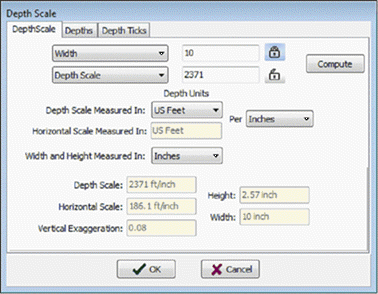
The Profile View Depth Scale tool changes both the vertical and horizontal scale on the Directional Well Module'sProfile View. This tool also changes the upper and lower depth range and adds depth ticks to the active well. This tool is a more precise alternative to the "Fit Depths To Screen" tool (F4) and the Auto-Set Depths tool (F5). Both of these tools are available under the Depths menu on the menu bar at the top of the Profile View window. To open the Depth Scale tool, select the Depth Scale tab
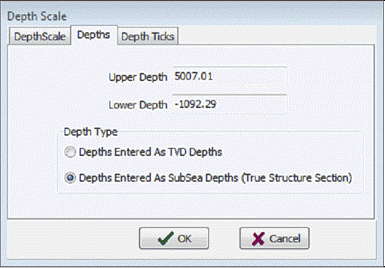
Depths tab
Depth Type
Depth ScaleThe Depth Ticks tab displays depth ticks at points along the Active well's wellpath.
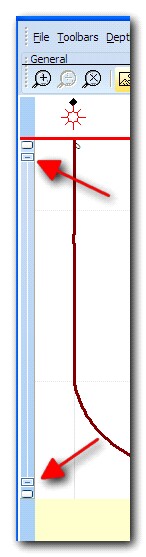
Depth Scale Drag HandlesThe left side of the Profile View has two small drag handles that adjust the depths visible in the window. Simply click, drag, and release to change the depths. After changing the depths using the drag handles, press F4 to redraw the window with the new depth interval.
|
 button on the toolbar at the top of of the Profile View window, or select Depths>Depth Scale on the menu bar at the top of the Profile View Window.