Layer Name List
Visible for both Properties and Preview tabs, the list box shows all layer names in the open Overlay file.
This list selects the currently active layer - as an example, to change the state outline color to red, you'd need to select the "State" overlay layer here first.
The Layer Name List displays the current status of all the layers in the overlay file. Layers which are not currently visible are indicated by a small  symbol. The layer's default color, which is the color assigned to newly added items, is shown on the right edge of the list. symbol. The layer's default color, which is the color assigned to newly added items, is shown on the right edge of the list.

The Layers tab has two tabs: Properties and Preview. The Properties tab changes layer visibility, layer names, and update status. The Preview tab displays a quick preview of the data inside the specified layer. These two tabs are on the upper right corner of the Overlay Layers tool.
Layers tab
The Layers tab sets a few of the basics for the layers in the overlay file. This includes changing layer names, visibility, and update status.
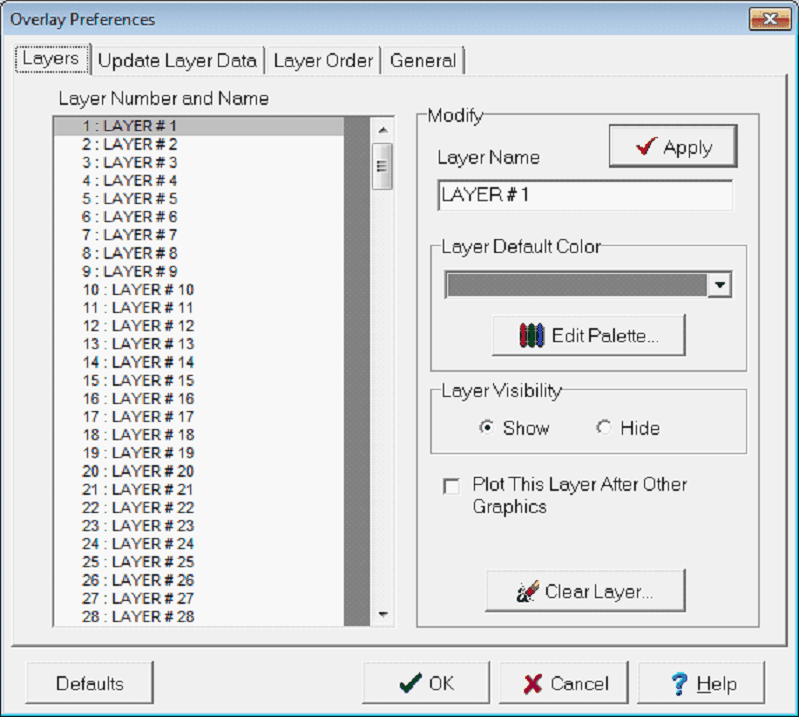
Layer Properties
|
Layer Name
|
To change the name of a layer, first select the layer in the Layers lists. Type a new layer name and click the "Apply" button.
|
|
Layer Default Color
|
To change the default color of a layer, first select the layer in the Layers list. Select a new color from the drop down color list and click the "Apply" button.
|
|
Layer Visibility
|
Use this section to "Show" or "Hide" individual layers. Double clicking the layers list will toggle a layer's visible state.
|
|
Plot This This Layer After other Graphics
|
This option changes how Petra handles overlaps between overlay objects and other elements on the Cross Section Module. When this option is selected, Petra will draw the selected layer last, on top of other objects.
|
|
Clear Layer
|
This option can be used to delete all data associated with the selected layer. You will be prompted to verify the clearing process. Data is only removed from memory. It does not effect any saved overlay files unless you overwrite them with the modified overlay.
|
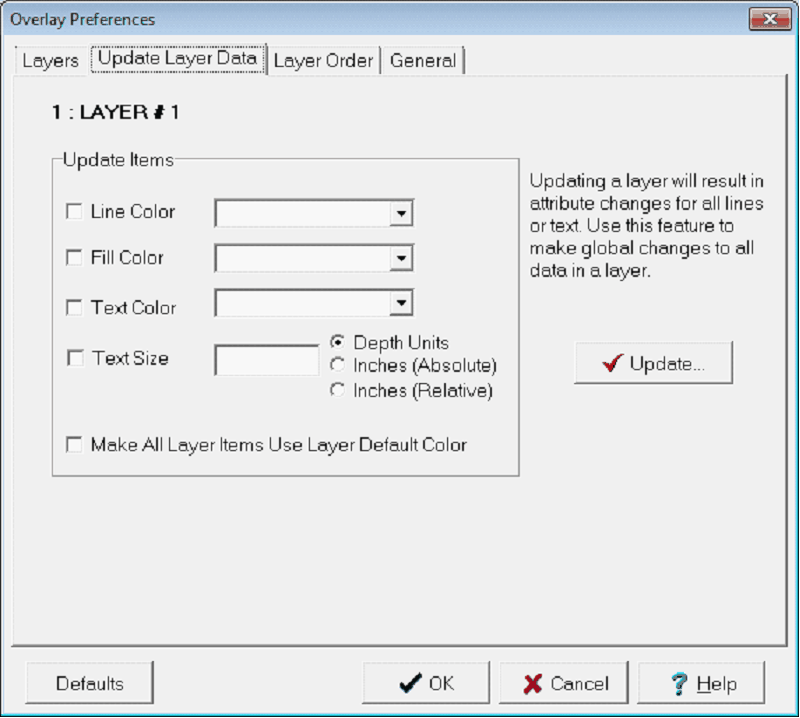
Update Layer Data
|
Line Color
|
Sets the color of the line. For closed polygons, this will set the shape's outline. To change the available colors on this dropdown, select the "Palette..." button. To restore the default colors, select the "Default" button.
|
|
Fill Color
|
Sets the color of the fill inside a polygon.
|
|
Text Color
|
Sets the color of the text. To change the available colors on this dropdown, select the "Palette..." button. To restore the default colors, select the "Default" button.
|
|
Text Size
|
Sets the height of the text in depth units, or inches. With "relative" inches, the text will enlarge as you zoom in and out of the map.
|
|
Make All Layer Items Use Layer Default Color
|
This option changes all layer items to use the default layer color set on the Layers tab.
|
Layer Order
This section allows layers to be specified in a plotting preference order. All layer names are shown in the list box in the current plotting order. Layers at the top of the list are plotted before layers coming later in the list. Thus, a layer at the top of the list may be covered up by subsequent layers.
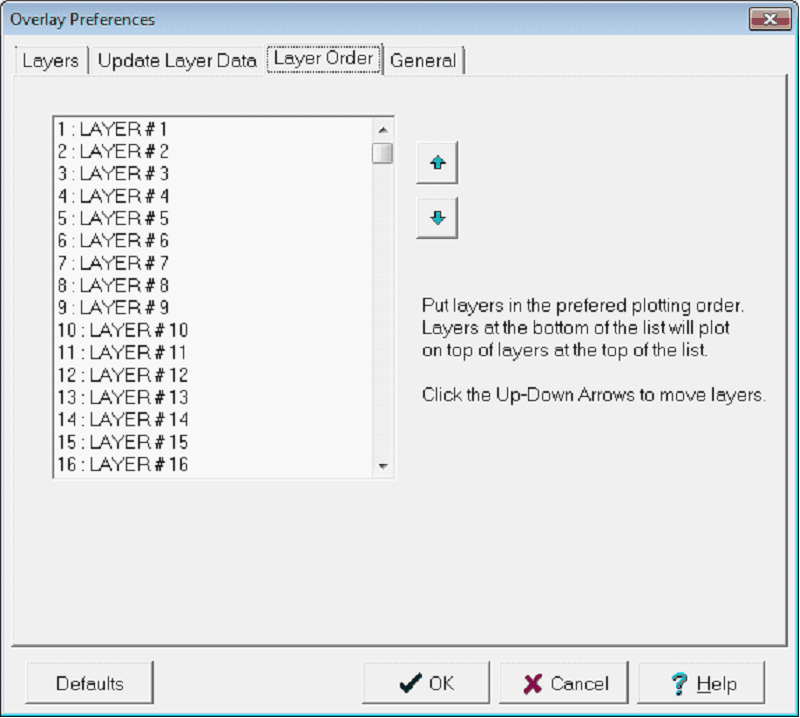
Select a layer from the list and click the small  and and  arrows to change the layer's plotting order. arrows to change the layer's plotting order.
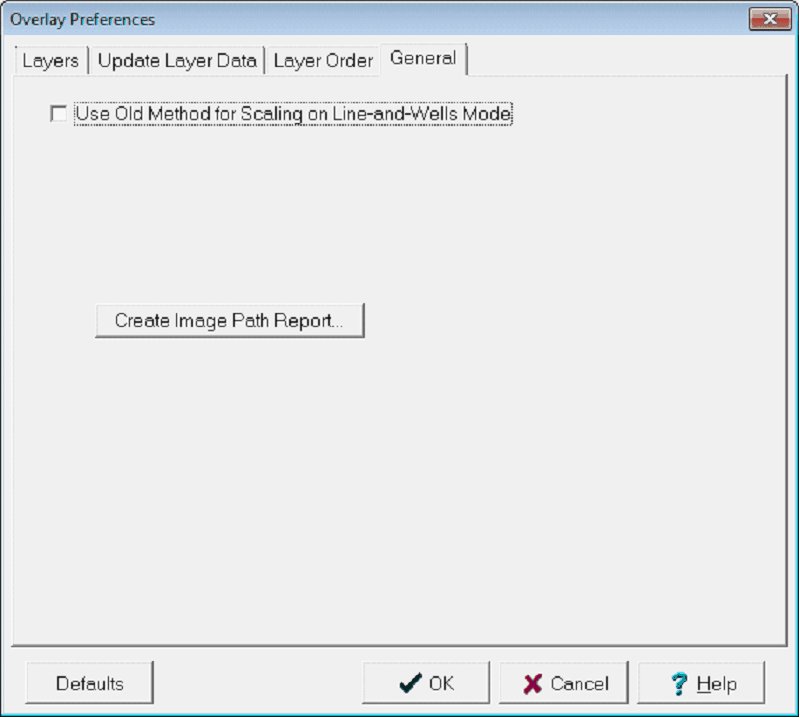
General tab
The General tab contains options for scaling and image path reports.
|