Fm Substitution |
|
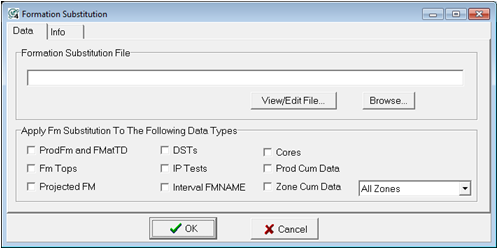
The Fm Substitution Tool can substitute a single formation top for one or more formation tops. To open the Fm Substitution tool, select Compute>From FmTops>Fm Substitution... from the menu bar at the top of the Main Module. Data tabThe Data tab sets the specific formation top substitution file, as well as the specific formation top names in the project that will be changed.
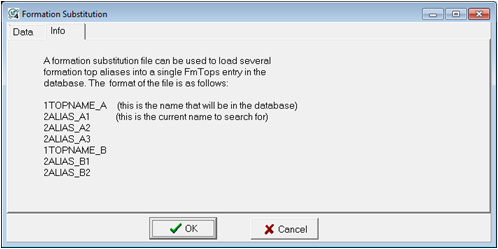
Apply Fm Substitution To The Following Data TypesProdFm and FMatTD - This option applies the formation substitution to the well's "Prod. Fm" and "Fm at TD" entries displayed on the Main Module's Well tab. Fm Tops - This option applies the formation substitution to the project's formation tops available on the Main Module's FmTops tab. Projected FM - This option applies the formation substitution to the project's PROJFM data item in the WELLS zone. DSTs - This option applies the formation substitution to the project's DSTs, available on the Main Module's Fm Tests tab. IP Tests - This option applies the formation substitution to the project's DSTs, available on the Main Module's IP Tests tab. Interval FMNAME - This option applies the formation substitution to the FMNAME column for all the project's interval tables. This will include the default LITH, CORE, PALEO tables, as well as any user-created interval tables. Cores - This option applies the formation substitution to the "Formation" entries in the project's Cores, available on the Main Module's Cores tab. Prod Cum Data - This option applies the formation substitution to the "FMNAME" column in the project's Prod Cums, available on the Main Module's Prod Cums tab. Zone Cum Data - This option applies the formation substitution to the Zone Cumulate Production data items created by the Compute Cumulative Production tool. Info tabThe info tab simply illustrates the proper formatting for formation substitution files. These files can be created manually, or by using an existing project's formation top aliases with the Save FmName Alias File tool.
|