|
While importing new data with a different projection into a project is fairly common, changing an entire project's map projection is usually rare. As such, the risks of bad map projections will usually outweigh the rewards of all users being able to easily work with the project's map projections. Limiting access to changing map projections is a good way to prevent accidents and ensure project stability.
Setting a Default Projection
The best time to set a project's map projection is at the very beginning. A default projection ensures all new projects system-wide will automatically use one predefined map projection.
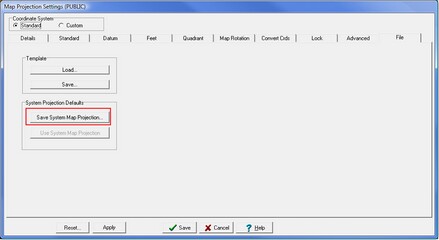
To set a system-wide default projection, select the Save System Map Projection
button under the File tab of the Map Projection Settings window. This creates a new file in the system-wide PARMS directory called DEFPROJECTION1.BIN. This file contains the project's current map projection. Setting a default projection can be useful for companies or field offices that are focused on a specific basin where one map projection is always applicable.
Locking the Map Projection
One the map projection is set, locking the project's map projection is an easy and quick way to prevent accidents. Locking a project's map projection disables changing the project's datum, coordinate system, or XY units (feet or meters).
It's worth noting that any user can still change the import datum. Unlocking a project is fairly easy and can be performed by all users in the project. Simply select Unlock Map Projection
on the Unlock tab.
On the of the Map Projection Settings Lock, select Lock Map Projection
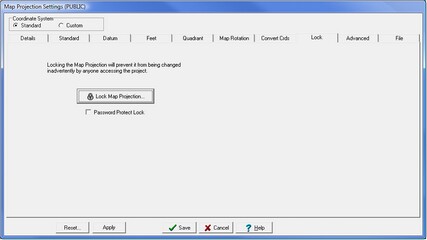
Adding a password adds significantly more security as only users with the password can change the map projection. This saves the current map projection, and prompts the user to set and confirm a new password Again, this disables changing the project's datum, coordinate system, or XY units (feet or meters).
Any user can still change the import datum.
Setting Map Projection Administrative Privileges with Petra.INI
Another way to limit the users able to modify map projections is with an administrative list stored in a Petra.INI file. With this method, there are no passwords to remember and the administrative list can be applied to either one Petra project or to all Petra projects on a server.
Petra.INI is just a plain text file with an *.INI extension.
This file isn't created automatically, so it's necessary to either create it from scratch or copy the sample Petra.INI located in the PetraSRV\PARMS folder.
- To limit access on a single project, save Petra.INI inside the project's root directory (e.g. H:\Projects\SMITH FIELD).
- To limit access on every project on a server, save Petra.INI to the folder where the Petra executables are located (by default, this is in the PetraSRV directory).
Once the file is placed in the proper spot, edit it using Microsoft Notepad or WordPad. The example below prevents normal users from saving default map projections or changing a project's existing map projection. To turn off each individual limitation set the item to YES. As an example, SAVEDEFAULTPROJECTION =YES allows all users to save default map projections. The ADMINLIST sets up a specified list of users as admins. In the example below, JHK and KHM are on the administrator list, so they can change map projections or save default projections.
[GENERAL]
SAVEDEFAULTPROJECTION=NO
; This option prevents users saving default projections
ALLOWUSERPROJECTION=NO
; This option prevents users from creating "User Defined" coordinate systems under the ; standard tab.
[USERSOURCE]
ENABLED=1
ADMINLIST=JMK, KHM
; This sets the administrator list. Users JMK and KHM are administrators.
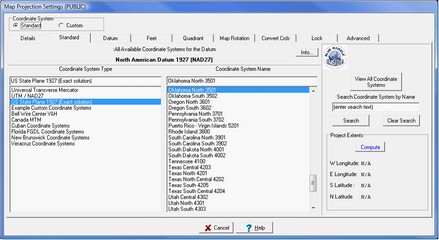
Map projection settings as viewed by a normal user.
Note the lack of a "Save" button.
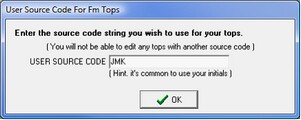
An admin list relies on a set of user names. To change user names while inside a project, select:
Project > Settings > Set User Source Code
and enter the appropriate user name.
|