|
Every overlay line has a series of attributes that define the type of line and its appearance.
General tab
The General tab sets the basics of the line, including its layer and class.
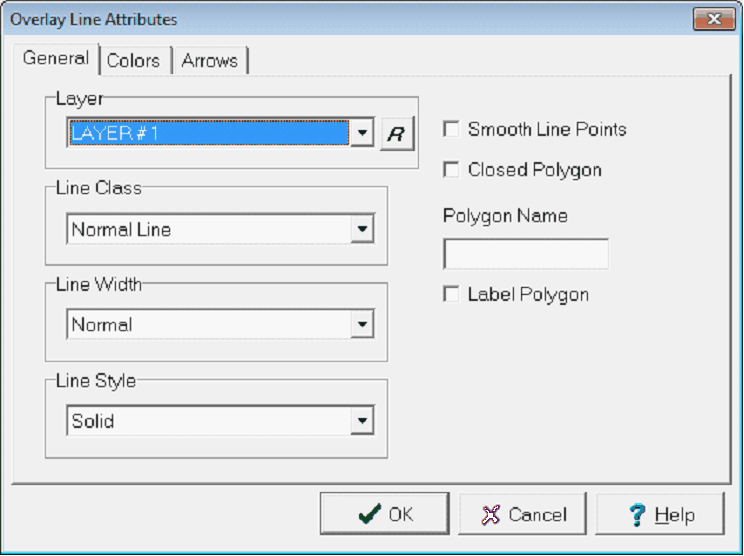
Although normal lines are for displaying visual information (like section outlines or roads) contour, unconformity, and fault lines can also be used to influence the gridding process.
|
Layer
|
Sets the layer that will contain the line. Since the CrossSection Module can selectively display or hide entire layers, related lines should generally be in the same layer.
Click the  button to rename layer. button to rename layer.
|
|
Line Class
|
- Normal Line - Normal lines have no specific attributes beyond a color and fill. Normal lines are useful for display purposes, including lease lines and arrows.
- Unconformity Line - Unconformity lines illustrate an unconformable surface contact with a squiggly line on the map.
|
|
Line Width
|
This dropdown sets the line widths for drawing the line. Line widths range from narrow to extra-wide. This dropdown also can select the 4 custom "User-1" through "User 4" line widths. These line widths can be modified on the Petra Program Options'Font/Graphics tab in the Main Module.
|
|
Line Style
|
This dropdown sets the line to use one of the predefined drawing styles to draw a solid or dashed line.
|
|
Smooth Line Points
|
By default, Petra draws a straight line between the node points that make up a line. This option instead draws a smoothed line through the line's nod points.
|
|
Closed Polygon
|
This option forces the starting and ending points to match when drawing polygons. This switch should be specified when using area fill options.
|
|
Polygon Name
|
This entry sets the name of the polygon.
|
|
Label Polygon
|
This option plots the volumetric name in the center of the polygon
|
Colors tab
|
Do Not Fill
|
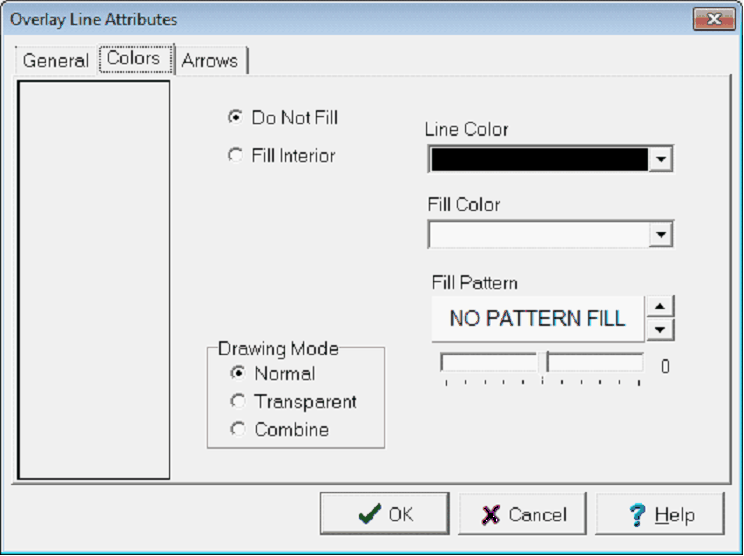
This option disables color fill for lines that are not polygons. This can also be used to draw a polygon without any color fill.
|
|
Fill Interior
|
This option fills the polygon with the color set on the "fill color" dropdown.
|
|
Line Color
|
This dropdown sets the color of the line. For closed polygons, this will set the shape's outline. To change the available colors on this dropdown, select the "Palette..." button. To restore the default colors, select the "Default" button.
|
|
Fill Color
|
This dropdown sets the color of the fill inside a polygon. To change the available colors on this dropdown, select the "Palette..." button. To restore the default colors, select the "Default" button.
|
|
Drawing Mode
|
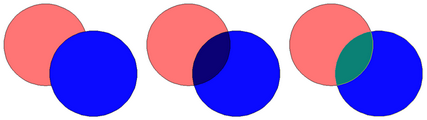
- Normal - This option draws the line or polygon element with an opaque color. Lines or polygons with a normal drawing mode will cover elements that are below them.
- Transparent - This option draws the line or polygon with a transparent color. With a transparent drawing mode, other elements will be visible through the line or polygon.
- Combine Colors - This option will display overlapping lines and polygons with a different color. In practice, this option is a great way to demonstrate regions of overlap on the overlay.
The blue circle on top with Normal (Left), Transparent (Center) and Combine Colors (Right) drawing modes
|
|
Patterns
|
Petra can draw patterns inside polygons. The left up/down button sets the pattern, while the right up/down button sets the density of the pattern.
|
|
Pattern Color
|
This dropdown sets the color of the pattern inside a polygon when the "Use Pattern Color" option is selected
|
|
Pattern Line Mode
|
- Use Thin Black - This option draws the selected pattern using thin black lines. This option will override the "Pattern Color" dropdown.
- Use Line Color & Width - This option draws the selected pattern using the line color (selected on the Colors tab) and thickness (selected on the General tab). This option will override the "Pattern Color" dropdown.
- Use Pattern Color - This option uses the color set by the Pattern Color dropdown immediately to the left.
|
Arrows tab
|
Arrow Type
|
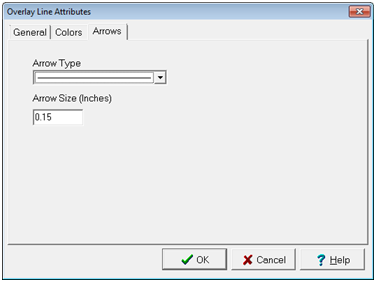
This dropdown sets the appearance of the arrow. Note that the arrows are directional. An arrow pointing to the right will put the arrowhead at the end of the line, while an arrow pointing to the left will put the arrowhead at the beginning of the line.
|
|
Size
|
This option sets the size of the arrow in inches.
|
|