|
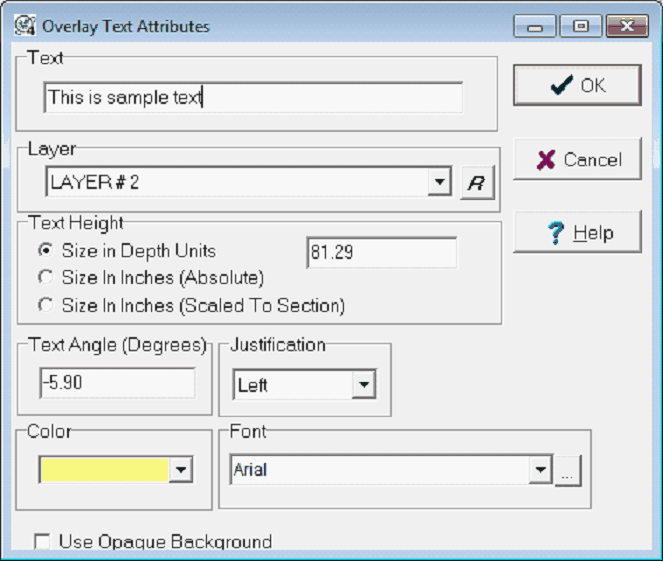
The Overlay Text Attributes tool sets the details for text displayed on the Cross Section Module. This tool will appear immediately after creating a text box.
To reopen this box and change text settings, select the red arrow button ( ) on the Overlay Tool Bar on the right side of the CrossSection Module and select the text to change. ) on the Overlay Tool Bar on the right side of the CrossSection Module and select the text to change.
|
Text
|
Sets the actual text on the cross section. This can contain text from 1 to 255 characters.
|
|
Layer
|
Sets the overlay layer that will contain the text. To rename the selected layer, select the " " button. " button.
|
|
Text Height
|
- Size in Depth Units - Scales text hight to the Cross Section Module's default depth units (set on the Map Projection Settings Units tab). With this option, text hight will increase and decrease with zoom.
- Size in Inches (Absolute) - Scales text height in inches. This option sets text height at a single size - it will stay the same size regardless of zoom. Be careful with this option when sending large cross sections to a plotter - an absolute text size that looks good on a computer screen may be too small for a large plot.
- Size in Inches (Scaled To Section) - Scales text height in inches relative to the actual size of the cross section (set by the vertical depth scale and the horizontal Cross Section Size Options). Put another way, this draws text at the actual scale that will be sent to the plotter.
|
|
Text Angle
|
Sets the text's rotation in degrees. 0 is horizontal, positive degrees rotate the text counter clockwise, and negative degrees rotate the text clockwise.
|
|
Justification
|
Sets the text justification within the textbox. This can be set to left, right, or centered.
|
|
Color
|
Sets the text's color.
|
|
Font
|
Sets the text's font.
|
|
Use Opaque Background
|
Set this option to draw the text using the cross section background color as the background of the text. Opaque text will cover up underlying data.
|
|