Reproject an Entire Project to a Different Coordinate System (Same Datum)


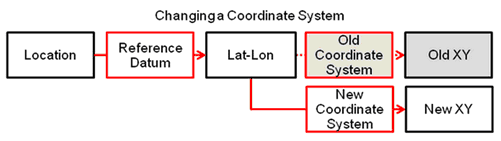
Petra uses the project's coordinate system to calculate XYs from LatLons.  Changing this coordinate system means it is necessary to recalculate the XYs.  

clip0506

Reprojecting a project:

Make sure to have a backup of the entire project before attempting to reproject.

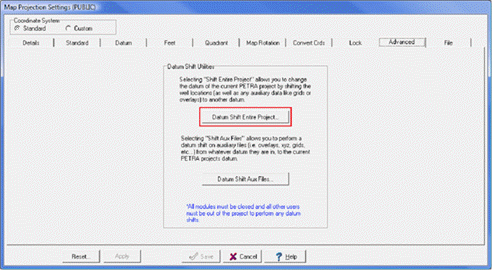
  1. Open Map Projection Settings Main: Project > Settings > Set Map Projection
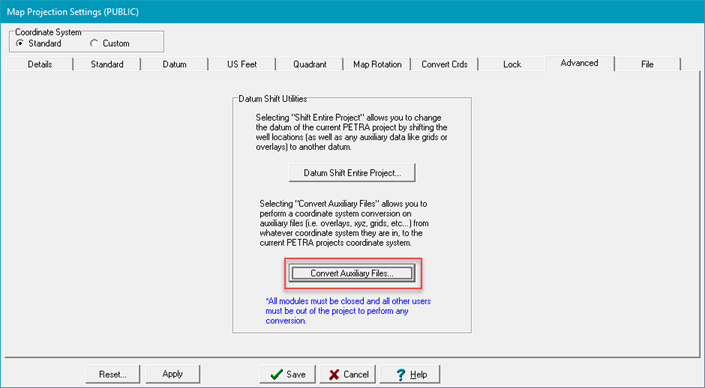
  1. Click Datum Shift Entire Project
  2. Select a new reference datum for the project from the drop down list, Click Continue.
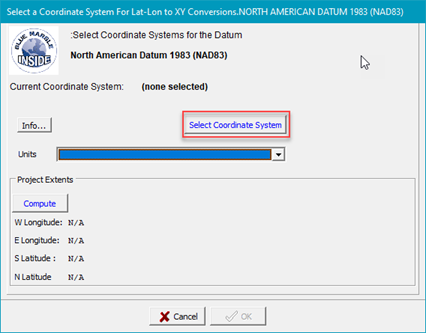
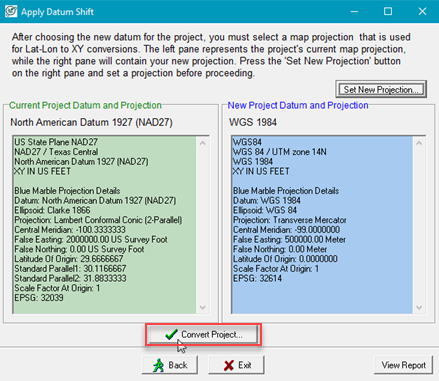
  1. A dialog for comparing the current datum and projection will open with the selected Datum only. Click Set New Projection button.

  2. Click Select Coordinate System button, it is not necessary to set the Units at this point.  
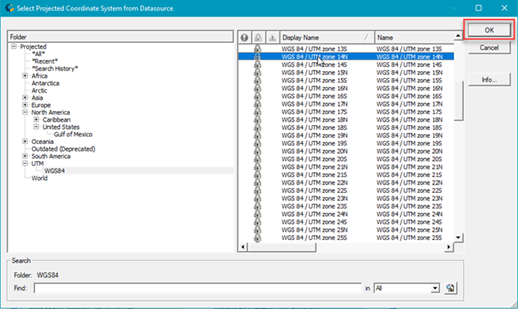
  3. The Blue Marble Apply Datum Shift dialog opens. Select your new projection from the available list and Click OK.
This reopens the comparison dialog showing both the current and new map projections.
  1. Click Convert Project button.
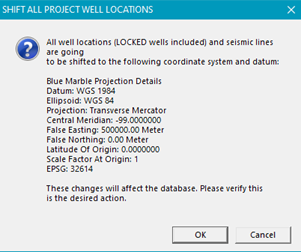
  2. The new datum and projection summary will be displayed for confirmation . If correct, Click OK.

Since the well locations have changed, it is important to reproject the other data files (Grids, XYZ files, and LatLonZ files.

Reprojecting Overlay files, Grids, LatLonZ, and XYZ files:

Since all of the data types basically follow the same procedure just the overlay files will be documented as an example.

  1. From the Map Projection Settings Advanced tab, Click Convert Auxillary Files...button.
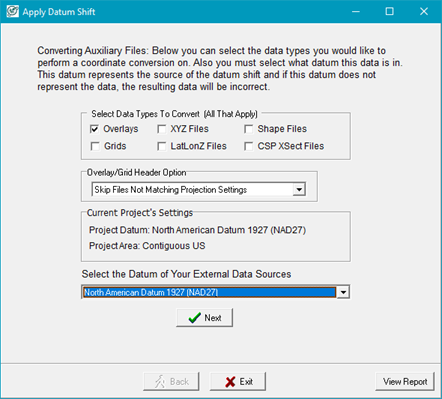
  1. Select options and click Next.

Data Types to Convert

Each selected data type will be projected

Overlay Grid Header Option

  • Skip files not matching projection settings—Custom projection settings in the converted data files will be retained.
  • Convert all selected files—Overwrites any custom settings that might have been made.

Select the Datum of your external Data Sources

Select datum from generated list.

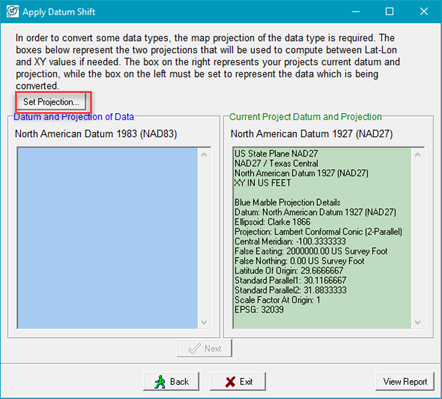
  1. The datum comparison dialog opens with the current datum and projection populated, Click Set Projection.
  1. Click Select Coordinate System button, it is not necessary to set the Units at this point.  
  2. The Blue Marble Apply Datum Shift dialog opens. Select your new projection from the available list and Click OK.
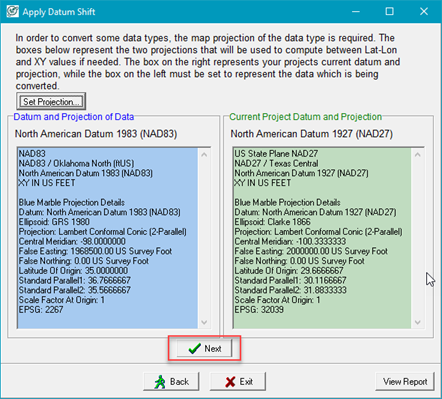
This reopens the comparison dialog showing both the current and new map projections.
  1. Click Next.
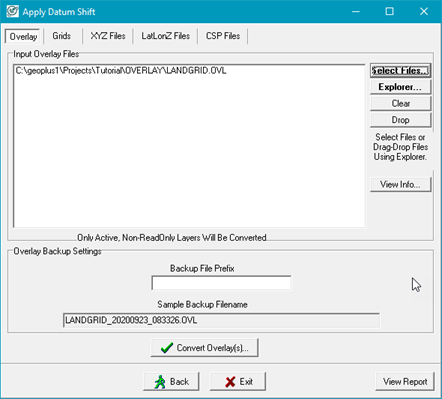
  2. The next step is to select which overlay layers to reproject into the new map projection.  Click Explorer... to open the project's OVERLAY folder in Microsoft Explorer window.  Drag and drop files from the Explorer window into the Input Overlay Files window.

Petra automatically creates a backup of all overlay files when a datum shift is applied.  The backup filename simply appends a timestamp (YYYYMMDD_HHMMSS) between the overlay name and file extension.  You can also add a prefix to the backup file name.  In the example below, the prefix of BACKUP is added.

  1. Click Convert Overlay(s).. to reproject the selected overlay files.